
How to Backup Microsoft Teams Data: Step-by-Step Guide
Backup chats, channels, and files without data loss.
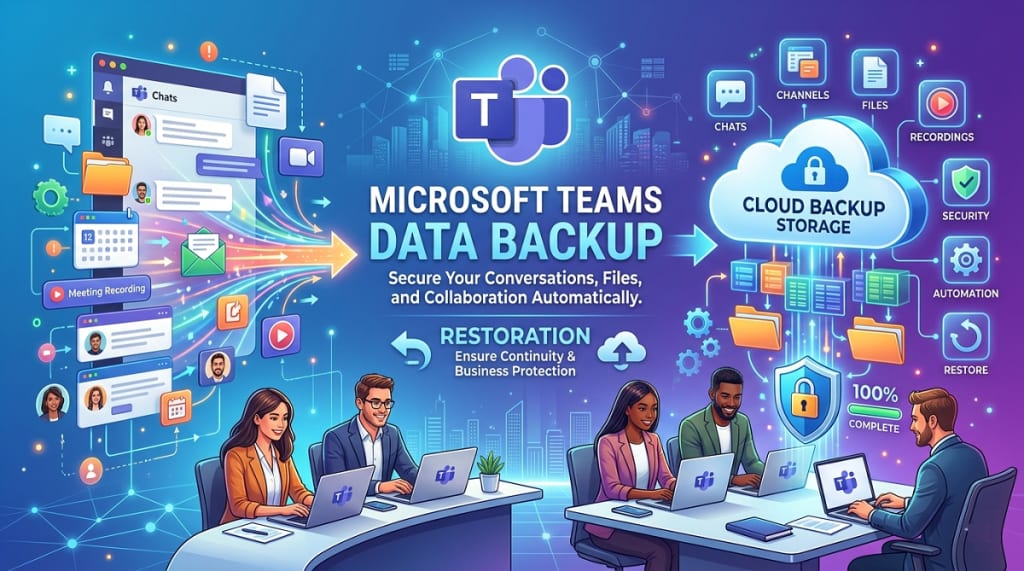
After the official deactivation of Skype, Microsoft Teams became the biggest collaboration platform globally. Millions and millions of daily users with billions of messages, meeting recordings, documents, & what not. But security is still a concern, even with stringent security algorithms in place. There is even a myth that the built-in retention features in Microsoft 365 automatically protect all your data. The best resolution to protecting your data is backing up Microsoft Teams data and avoiding unexpected security incidents.
But how to back up Microsoft Teams data? In this guide, get all the necessary aspects from why backups are necessary to the practical approaches that work in a reliable Microsoft Teams data backup.
Why Microsoft Teams Data Backup Matters the Most: Top Reasons
Microsoft promotes a shared responsibility model where Microsoft secures the cloud infrastructure (security of the cloud), and the customer secures their data within the cloud (security in the cloud). Microsoft Teams data can be lost for several reasons and backup:
- Protect their important conversations & documents.
- Recover important files after accidental deletion.
- Preserve all old collaboration data.
- Meet regulatory and compliance requirements when needed.
Data Needed in Microsoft Teams Backup: Component Listed
When going for a backup strategy, first understand what types of data exist within Teams. A comprehensive backup Microsoft Teams approach should cover the following components:
- Team conversations include direct chats, group chats, channel messages, & shared links.
- Files shared in Teams channels & private chats.
- Meeting recordings, transcripts, & shared meeting files.
- Information about teams, channels, permissions, & membership.
How to Backup Microsoft Teams Data: Some Practical Ways
Organizations can use the methods mentioned below for Microsoft Teams data backup. Each approach has different levels of efficiency to experience:
Way 1: Export Teams Data via Microsoft 365 Tools
Microsoft has some administrative tools that organizations can use to export certain types of Teams data. For example, admins can use compliance features to export messages or retrieve archived content when required. However, this method can help retrieve specific information; it may not always provide a full or automated backup of all Teams components.
Way 2: Do Regular Teams Data Exports
Another practical strategy for how to backup Microsoft Teams data involves scheduling regular and updated exports of important Teams. This may include:
- Periodic exports of Team conversations.
- Archive meeting recordings.
- Saving project documentation to secure storage locations.
Note: Regular exports help backup old data that retention policies might otherwise remove. You can also go for a professional Microsoft Teams Backup solution for regular backups.
Way 3: Make Teams Data Retention Policies
Microsoft retention policies can help protect important information by preventing early or mistaken deletion. Admins can customize policies to retain Teams data accordingly. However, retention policies do not replace backups; they can support a broader backup Microsoft Teams strategy.
Standard Techniques for Microsoft Teams Data Backup
Solid strategies help in effective Microsoft Teams file backup, and everyone, such as organizations and professionals who use Teams, should follow several best practices:
- Every Teams data carries a different level of importance, so access teams, channels, & files that contain important information.
- Manual backups are difficult & inconvenient, so automate exports or backups on a regular schedule.
- Backups in multiple locations (like the 3-2-1 rule) reduce the risk of data loss due to system failures or security incidents.
- Backups are only useful if they can be restored when needed, so test the backups periodically to confirm that their Microsoft Teams data backup strategy works as expected.
Possible Challenges in Microsoft Teams Backup Process
Despite its importance, how to backup Microsoft Teams is not always straightforward. Several challenges may arise during the process. Some of them are:
- Data distribution across services.
- Compliance & security considerations.
- Rapid data growth consistently.
Conclusion
In this high-tech environment, collaboration platforms become central to modern workflows, the protection against data loss is quite important. So, every business or Teams user should know how to backup Microsoft Teams data to safeguard files, conversations, along with project knowledge & other data that are crucial for everyday operations.
A reliable backup Microsoft Teams strategy involves identification of critical data, implementation of structured backup processes, regularly reviewing recovery procedures, ect, that organizations can follow to keep the Teams secure and accessible at any time.
About the Creator
Claire Bowen
Tech-savvy and detail-driven, Claire shares insights on Microsoft 365, email migrations, and smart tools. Loves streamlining workflows as much as she loves coffee and a well-organized workspace.
Keep reading
More stories from Claire Bowen and writers in Journal and other communities.
Cross-Forest Exchange to Exchange Migration: Step-by-Step Guide
Email systems are piling up exponentially. Companies do mergers and acquisition, organizations/teams split, or infrastructure decision changes over time. One common result is multiple Microsoft Exchange environments running in different Active Directory forests.
By Claire Bowen3 months ago in Journal
Author’s Advice
If you would’ve asked me 20 years ago did I know I’d become a writer and an author, I would’ve said “nope, ain’t happening”. As fate would have it I did become an author and I can honestly say I’m loving it so far. It really does feel good to be a writer. I’ve learned a lot on this journey and I feel like with even me being as new to this world as I am, there’s some wisdom I need to share with every other aspiring author.
By Joe Patterson6 days ago in Journal
The Value of Financial Perspective in Modern Organizations
Financial leadership plays a significant role in shaping how organizations move forward. While many people associate finance primarily with reporting and accounting, the influence of financial perspective extends far beyond these traditional responsibilities. In today’s environment, organizations rely on thoughtful financial insight to guide decisions, manage uncertainty, and maintain stability.
By Carolina Guerreno2 days ago in Journal




Comments
There are no comments for this story
Be the first to respond and start the conversation.